
Oct 19, 2026 · 4,758 words
Technical SEO Checklist for Non-Developers — 20 Easy Checks
You’ve got a website, real buyers to serve, and not much time. But pages feel slow, Search Console throws warnings, or a key page isn’t showing up in Google or…
You’ve got a website, real buyers to serve, and not much time. But pages feel slow, Search Console throws warnings, or a key page isn’t showing up in Google or AI answers. You don’t need to be a developer to run a sharp technical SEO pass — you need a prioritized list, a few one‑click tests, and clear hand‑offs when code is required.
This technical seo checklist for non-developers is designed to fit into one focused afternoon. You’ll run quick audits, fix the easy stuff in your CMS, and create clean developer tickets for anything heavier. The outcome: faster, indexable pages, cleaner crawl paths, and fewer surprises in Search Console next week.
Key Takeaways
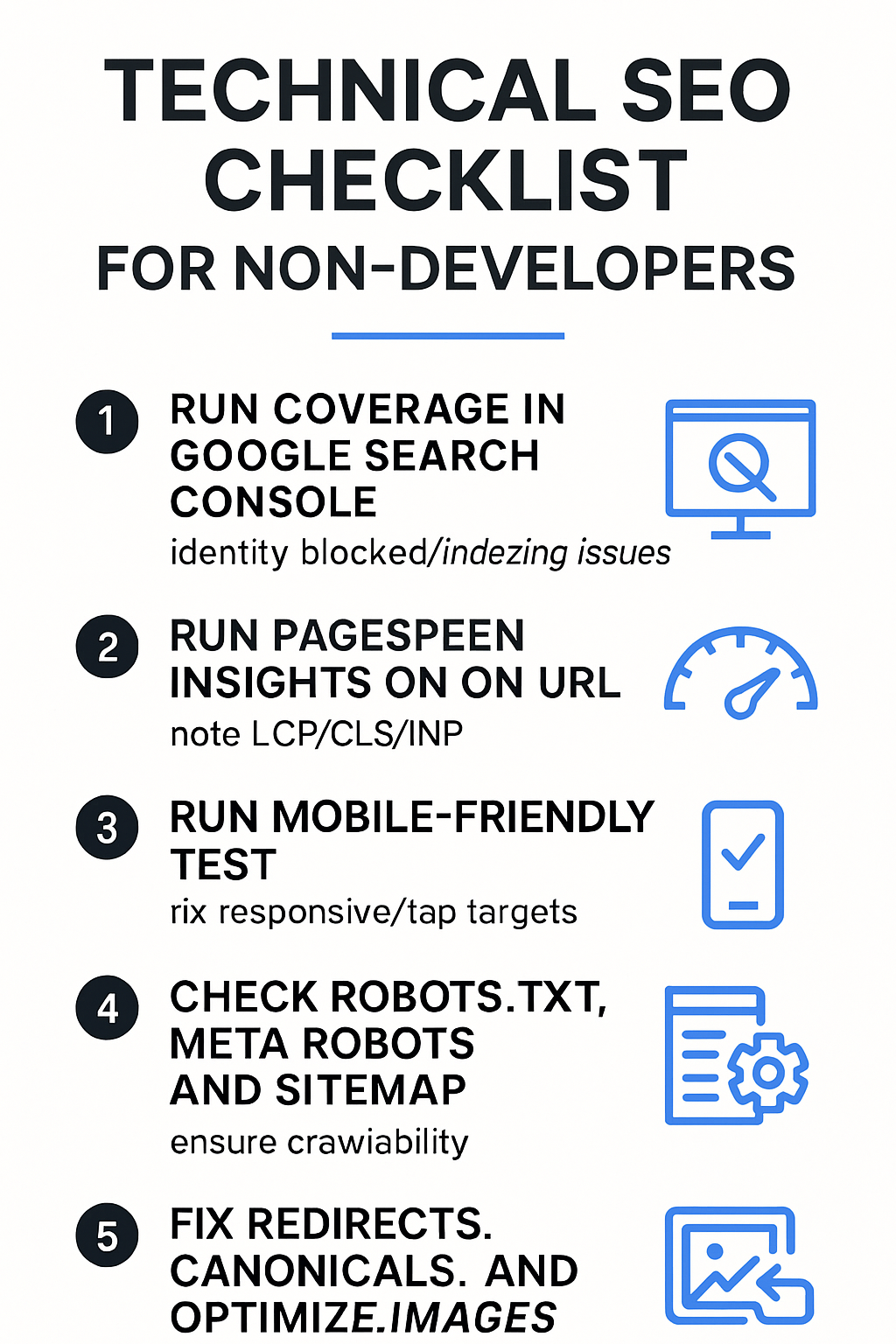
- Start with the big three: Google Search Console Coverage, PageSpeed Insights for one URL, and the Mobile‑Friendly Test. Fix what those show first.
- Prioritize crawlability and indexability before speed: HTTPS, robots.txt, meta robots, sitemaps, and 200/301 status codes.
- Kill redirect chains and broken links; set canonicals on look‑alike pages; check basic structured data for errors.
- For speed wins you can do without code: compress and properly size images, enable caching/CDN, and defer/remove heavy third‑party scripts.
- Hire a developer when server settings, custom JavaScript, or template‑level changes are needed. Give them precise tickets and verify fixes in Search Console and Lighthouse.
How I prioritized these 20 checks
Each item is ranked by impact on visibility multiplied by effort for a non‑developer.
- Critical: Blocks crawling/indexing or causes major visibility loss.
- High: Strong ranking/speed impact; many fixes doable in a CMS.
- Medium: Useful improvements that reduce waste and smooth performance.
- Low: Nice‑to‑haves and maintenance automations.
Tools you'll need (free & cheap)
You don’t need a tool stack. Keep it simple:
- Google Search Console (used in checks 2, 3, 4, 5, 10, 11, 19, validation)
- PageSpeed Insights and Lighthouse in Chrome DevTools (checks 7, 12, 16, validation)
- Mobile‑Friendly Test (check 7)
- Browser DevTools Network panel; simple HTTP status checkers or cURL (check 6)
- A crawler (Screaming Frog free crawl up to 500 URLs) (checks 8, 9, 10, 17, 18)
- SSL/TLS checkers and mixed‑content testers (check 1)
- Cloudflare or your host’s CDN/caching panel (checks 1, 14, 15)
- Image compressors or CMS plugins for images (check 13)
- Tag manager or your CMS’s performance plugins (check 16)
Note: I reference these tools by name; you can find each in a quick search or in your CMS/host dashboards.
Quick audit: three one‑click checks to run now
Do these first. They reveal most high‑impact issues quickly.
- Google Search Console Coverage
- Open Search Console, pick your domain property.
- In Indexing > Pages, scan “Why pages aren’t indexed.”
- Look for “Blocked by robots.txt,” “Alternate page with proper canonical,” “Crawled — currently not indexed,” or server errors. Click a reason to see example URLs.
- Action: Fix any obvious blocks (see checks 3–5) and “Validate fix” after changes.
- PageSpeed Insights (one key URL)
- Paste your homepage URL; run mobile first.
- Scan Core Web Vitals (LCP, CLS, INP) and Opportunities.
- Action: Note largest contentful paint element (often a hero image), any layout shifts, and heavy scripts. We’ll address in checks 12–16.
- Mobile‑Friendly Test
- Paste a representative URL.
- Look for blocked resources, text too small, or clickable elements too close.
- Action: If failed, switch to a responsive theme or adjust font/button sizes (check 7).
Priority overview: Critical / High / Medium / Low
Here’s the order to tackle issues. Critical items remove indexation roadblocks; High items strengthen stability and speed; Medium reduces waste; Low automates future hygiene.
Critical
- HTTPS and valid certificate
- Google Search Console setup
- robots.txt not blocking important pages
- Meta robots on key pages (no accidental noindex)
- XML sitemap created and submitted
- Correct server responses (200/301/404/500)
High
- Mobile friendliness
- Fix redirect chains and enforce 301s
- Canonical tags for duplicates
- Find and fix broken links
- Structured data basics and error cleanup
- Core Web Vitals quick wins
Medium
- Optimize images (size/format/srcset)
- Enable caching and use a CDN
- Compress assets (gzip/brotli) + browser caching
- Minimize heavy third‑party scripts
Low
- Clean URL parameters and enforce style
- Pagination and canonicalization for series pages
- Automate sitemap/robots updates
- Developer ticket template & verification checklist
20 Technical SEO Checks — detailed steps
Use this technical seo checklist for non-developers line‑by‑line. For each item: why it matters, tools, steps, CMS recipes, effort, developer hand‑off, and how to verify.
1. Confirm HTTPS and valid certificate
Why it matters: Browsers flag non‑HTTPS; search engines prefer secure URLs. Mixed content (HTTP assets on HTTPS pages) can break pages and cause warnings.
- Tools: Browser padlock, SSL/TLS checker, mixed‑content tester, Cloudflare/host dashboard.
- Steps:
- Open your homepage; check for a padlock. Click to view certificate validity and expiry.
- In DevTools > Security, confirm “This page is secure.” In Console, look for mixed content warnings.
- Try http://yourdomain — it should redirect to https:// with a single 301.
- CMS recipes:
- WordPress: Settings > General: ensure both URLs use https. If needed, use a “Really Simple SSL”‑type plugin to force HTTPS.
- Shopify/Wix: HTTPS is automatic; ensure “Redirect to primary domain” is enabled.
- Cloudflare: Enable “Always Use HTTPS” and “Automatic HTTPS Rewrites.”
- Effort: Low.
- Dev hand‑off (ticket):
- Title: Force HTTPS and resolve mixed content
- Steps: Redirect all HTTP to HTTPS with 301; fix any HTTP asset calls; confirm HSTS if appropriate.
- Expected: Single 301 to canonical https, no mixed content.
- Priority: Critical
- Verify: Re‑load site, check padlock, re‑test with mixed‑content tool, confirm one 301 hop in Network panel.
2. Add and verify site in Google Search Console (indexing)
Why it matters: Search Console shows crawling/indexing coverage and lets you submit sitemaps.
- Tools: Google Search Console.
- Steps:
- Add a property (domain preferred). Verify via DNS if possible; otherwise HTML file/tag.
- Submit sitemap URL in Indexing > Sitemaps.
- Use URL Inspection for a few key pages; Request Indexing if needed.
- CMS recipes:
- WordPress/Shopify/Wix: Add the Google verification tag in theme/header settings or use a plugin/app.
- Effort: Low.
- Dev hand‑off: Usually not needed unless DNS access is restricted.
- Verify: Property shows data; sitemap “Success”; URL Inspection shows “URL is on Google” for key pages.
3. Check robots.txt and test blocked URLs
Why it matters: A misconfigured robots.txt can accidentally block your whole site or key assets like CSS/JS.
- Tools: Browser (visit /robots.txt), Search Console robots.txt tester.
- Steps:
- Open yourdomain.com/robots.txt. Look for “Disallow: /” (blocks everything) or blocking rules for key sections.
- Test a few URLs in the tester to confirm they’re allowed.
- CMS recipes:
- WordPress: Use SEO plugin’s “Tools” > robots.txt editor or host file manager.
- Shopify: Editing is limited; focus on theme and canonical settings; use Search Console parameter handling where relevant.
- Wix: SEO Settings > robots.txt, edit if available.
- Effort: Low to Medium.
- Dev hand‑off (ticket):
- Title: Fix robots.txt to allow crawling of [paths]
- Steps: Remove/adjust Disallow lines; ensure CSS/JS not blocked.
- Expected: Important paths allowed; admin/cart/search pages can remain restricted.
- Priority: Critical
- Verify: Re‑test in robots tester; re‑crawl pages in URL Inspection.
4. Check meta robots and index/noindex on key pages
Why it matters: A stray noindex can de‑list a page.
- Tools: View source or DevTools > Elements; Search Console URL Inspection.
- Steps:
- Check a few templates (homepage, product, blog post) for meta robots tags.
- Remove unintended noindex/nofollow on important pages.
- CMS recipes:
- WordPress: In post/page editor (SEO plugin panel), set “Allow search engines to show this Page” to yes.
- Shopify: In theme, look for meta robots output on templates; apps can control visibility.
- Wix: SEO Basics > Show this page in search results.
- Effort: Low.
- Dev hand‑off (ticket):
- Title: Remove unintended noindex on [template/page]
- Steps: Update template logic; ensure no rogue headers (X‑Robots‑Tag).
- Expected: index, follow on key pages; noindex on thin/utility pages as intended.
- Priority: Critical
- Verify: URL Inspection should show “Allowed” and “URL is on Google” after re‑indexing.
5. Locate, create and submit an XML sitemap
Why it matters: Sitemaps help search engines discover URLs and understand updates.
- Tools: Your CMS, Search Console.
- Steps:
- Check common paths like /sitemap.xml or /sitemap_index.xml.
- If missing, enable via SEO plugin/app; include only canonical, indexable URLs.
- Submit in Search Console’s Sitemaps.
- CMS recipes:
- WordPress: SEO plugins generate sitemaps automatically (toggle on).
- Shopify/Wix: Auto‑generated; just submit the URL.
- Effort: Low.
- Dev hand‑off: Rarely needed.
- Verify: Search Console shows “Success,” with a reasonable URL count and no major errors.
6. Check server responses & HTTP status codes (200/301/404/500)
Why it matters: Wrong status codes confuse crawlers; chains waste crawl budget; 500s de‑index pages.
- Tools: DevTools Network panel; simple HTTP status checkers; cURL; a crawler.
- Steps:
- Test key URLs and ensure a 200 OK with no unexpected redirect.
- Check old URLs redirect once to the new canonical (301).
- Ensure non‑existent paths return 404 (not 200 or soft 404).
- CMS recipes:
- WordPress: Use a redirection plugin for 301s; ensure 404 template exists.
- Shopify/Wix: Built‑in URL redirect tools for 301s.
- Effort: Low to Medium.
- Dev hand‑off (ticket):
- Title: Normalize HTTP responses for [set of URLs]
- Steps: Fix 500s; ensure 404 for missing pages; set server‑level 301s for old paths.
- Expected: Stable 200/301/404 as appropriate; no loops/chains.
- Priority: Critical
- Verify: Re‑test responses; run a small crawl to confirm status codes.
7. Mobile friendliness (responsive & tap targets)
Why it matters: Most searches are mobile; poor usability hurts rankings and conversions.
- Tools: Mobile‑Friendly Test; PageSpeed Insights; device screenshots.
- Steps:
- Test a representative URL; note text size, viewport, tap targets, overlapping elements.
- Switch to a responsive theme or increase base font size and button spacing.
- CMS recipes:
- WordPress: Appearance > Themes; choose a responsive theme; adjust Customizer > Typography/Buttons.
- Shopify: Online Store > Themes; choose a mobile‑optimized theme; adjust spacing.
- Wix: Editor’s Mobile view; tweak font sizes and spacing.
- Effort: Low to High depending on theme.
- Dev hand‑off (ticket):
- Title: Fix mobile tap targets and viewport on [templates]
- Steps: Ensure viewport meta tag; minimum font sizes; sufficient padding.
- Expected: Pass Mobile‑Friendly Test; no overlapping elements.
- Priority: High
- Verify: Re‑run test; browse on actual devices.
8. Fix redirect chains and ensure correct 301s
Why it matters: Chains slow pages, dilute signals, and waste crawl budget.
- Tools: A crawler; online redirect checkers; DevTools.
- Steps:
- Crawl to list 3xx chains; fix to single 301 from old to new.
- Standardize www vs non‑www and trailing slash style.
- CMS recipes:
- WordPress: Redirection plugin; set site URL preference; server rules for domain‑wide redirects.
- Shopify/Wix: Use URL redirects; set a primary domain.
- Effort: Medium.
- Dev hand‑off (ticket):
- Title: Remove redirect chains for [list]; set canonical domain redirect
- Steps: Implement single‑hop 301s; update internal links to target final URLs.
- Expected: One 301 hop max; no internal links pointing to redirects.
- Priority: High
- Verify: Re‑crawl; confirm no chains; check server rules.
9. Set canonical tags to avoid duplicate content
Why it matters: Canonicals tell search engines which version of similar pages to index.
- Tools: View source; crawler’s canonical report; Search Console.
- Steps:
- Inspect a few near‑duplicate pages (filters, pagination, UTM variants).
- Ensure rel=canonical points to the preferred URL.
- CMS recipes:
- WordPress: SEO plugin lets you set a canonical per page.
- Shopify: Theme usually outputs canonicals; override in theme.liquid if needed.
- Wix: Advanced SEO > Canonical URL.
- Effort: Low to Medium.
- Dev hand‑off (ticket):
- Title: Normalize canonicals on [template]
- Steps: Set absolute canonical to primary URL; avoid self‑referencing mistakes when not intended.
- Expected: Consistent canonicals; Search Console shows fewer “Alternate page with proper canonical” surprises.
- Priority: High
- Verify: View source; crawl canonical chains; monitor Coverage.
10. Find and fix broken links (internal & external 4xx)
Why it matters: Broken links waste crawler time and frustrate users.
- Tools: Search Console > Pages report; crawler; broken link checker tools.
- Steps:
- Export 404s; map each to “restore, redirect, or remove link.”
- Update internal links to the live target (don’t rely solely on redirects).
- CMS recipes:
- WordPress: Redirection plugin for 301s; search/replace in content.
- Shopify/Wix: Built‑in redirects; update navigation and product links.
- Effort: Low to Medium.
- Dev hand‑off (ticket):
- Title: Resolve 404s from internal links
- Steps: Create 301s for high‑value legacy URLs; update templates/menus.
- Expected: No internal links to 404; key legacy URLs redirect to best match.
- Priority: High
- Verify: Re‑crawl; recheck Search Console after validation.
11. Structured data: check basic schema and fix errors
Why it matters: Structured data can enable rich results and better AI understanding.
- Tools: Rich Results Test; Schema Markup Validator; Search Console Enhancements.
- Steps:
- Test a few templates (product, article, local business).
- Fix missing required fields; avoid contradictory data (e.g., multiple Organization schemas with different names).
- CMS recipes:
- WordPress: SEO/Schema plugins add Article, Product, Organization; configure business info.
- Shopify: Many themes output Product schema; ensure price/availability are present.
- Wix: Business Info for LocalBusiness; enable site‑level Organization schema.
- Effort: Medium.
- Dev hand‑off (ticket):
- Title: Add/fix structured data for [template]
- Steps: Implement JSON‑LD with required properties; avoid duplication.
- Expected: Valid in Rich Results Test; errors cleared in Search Console.
- Priority: High
- Verify: Re‑test; monitor Enhancements in Search Console.
12. Core Web Vitals — measure LCP, CLS, INP and easy wins
Why it matters: These metrics reflect real‑user performance and influence visibility.
- Tools: PageSpeed Insights; Lighthouse; Chrome UX Report data in PSI.
- Steps:
- Identify the Largest Contentful Paint element; optimize its image or render path.
- Reduce layout shifts: set image dimensions, avoid inserting content above existing content, preload critical fonts.
- Improve interactivity: limit heavy scripts, defer non‑critical JS.
- Non‑dev quick wins:
- Compress hero images; use modern formats; lazy‑load below‑the‑fold.
- Preload key fonts; use font‑display: swap.
- Remove unneeded apps/plugins.
- Effort: Medium to High depending on theme/apps.
- Dev hand‑off (ticket):
- Title: Improve CWV on [template]
- Steps: Serve optimized hero; reserve space for images/embeds; defer non‑critical JS; preload critical assets.
- Expected: Better LCP/CLS/INP in PSI and field data over time.
- Priority: High
- Verify: Re‑test PSI; check field data periodically.
13. Optimize images (size, format, srcset)
Why it matters: Images are often the heaviest assets.
- Tools: Image compressors; CMS image settings; Lighthouse.
- Steps:
- Export images at the display size; compress; use modern formats where supported.
- Ensure responsive images with srcset/sizes so mobile devices get smaller files.
- CMS recipes:
- WordPress: Install an image optimization plugin; ensure “generate multiple sizes” is on; enable WebP.
- Shopify: Upload optimized images; many themes serve responsive images automatically.
- Wix: Use media manager; choose “auto” optimization and responsive settings.
- Effort: Medium.
- Dev hand‑off (ticket):
- Title: Implement responsive images and modern formats
- Steps: Add srcset/sizes; convert heavy assets; lazy‑load non‑critical images.
- Expected: Smaller total bytes; improved LCP.
- Priority: Medium
- Verify: Lighthouse Opportunities should show fewer image warnings; check bytes transferred.
14. Enable caching and use a CDN (Cloudflare or host)
Why it matters: Caching and a CDN reduce latency and server load.
- Tools: Host/Cloudflare dashboard; DevTools > Network (check cache headers).
- Steps:
- Turn on CDN; enable page caching and asset caching.
- Set a reasonable cache TTL for static assets; purge after big updates.
- CMS recipes:
- WordPress: Use a caching plugin; connect to a CDN via plugin or host.
- Shopify/Wix: CDN is built‑in; focus on proper asset caching headers via theme/host settings.
- Effort: Low to Medium.
- Dev hand‑off (ticket):
- Title: Enable and validate CDN + caching headers
- Steps: Ensure cache‑control/ETag; compress and cache static assets; test cache hit ratio.
- Expected: Faster TTFB; cached assets served globally.
- Priority: Medium
- Verify: DevTools shows cache hits; geographic tests feel faster.
15. Compress assets (gzip/brotli) and set browser caching
Why it matters: Text compression dramatically shrinks HTML/CSS/JS. Browser caching stops repeat downloads.
- Tools: DevTools > Network (Content‑Encoding, Cache‑Control); server/Cloudflare settings.
- Steps:
- Ensure gzip or brotli for text assets; set long cache lifetimes for static files.
- Avoid caching HTML for logged‑in areas.
- CMS recipes:
- WordPress: Enable via host or performance plugin.
- Shopify/Wix: Platform handles compression; confirm headers.
- Effort: Low.
- Dev hand‑off (ticket):
- Title: Enforce gzip/brotli and cache headers
- Steps: Update server or CDN rules; verify headers in DevTools.
- Expected: Compressed assets; strong caching on static files.
- Priority: Medium
- Verify: Check response headers; Lighthouse should flag fewer issues.
16. Identify and minimize heavy third‑party scripts
Why it matters: Analytics, chat, AB testing, and widget scripts can crush performance.
- Tools: Lighthouse > Third‑party summary; DevTools > Coverage/Network.
- Steps:
- Audit all tags; remove non‑essential ones; load others async/defer; delay until user interaction if possible.
- Replace heavy widgets with lighter alternatives where you can.
- CMS recipes:
- WordPress: Performance plugins to delay JS; manage tags via a tag manager.
- Shopify/Wix: Disable unnecessary apps; move scripts to the bottom where allowed.
- Effort: Medium.
- Dev hand‑off (ticket):
- Title: Optimize third‑party scripts
- Steps: Remove unused; defer/async remaining; lazy‑load non‑critical iframes.
- Expected: Lower JS execution time; better INP/LCP.
- Priority: Medium
- Verify: Re‑run Lighthouse; compare Total Blocking Time/INP.
17. Clean up URL parameters and enforce a single URL style
Why it matters: Parameters (utm, sort) and trailing slash inconsistencies create duplicates.
- Tools: Crawler; Search Console parameter settings; CMS permalink settings.
- Steps:
- Canonicalize parameterized URLs to the clean version.
- Enforce consistent trailing slash, lowercase, and www/non‑www.
- CMS recipes:
- WordPress: Settings > Permalinks; redirection rules for case/slash.
- Shopify/Wix: Set primary domain; avoid linking to parameterized URLs when not needed.
- Effort: Low to Medium.
- Dev hand‑off (ticket):
- Title: Enforce URL normalization and canonicalization
- Steps: Server 301 rules; canonicals on template; avoid linking to parameters.
- Expected: One canonical URL per page; fewer duplicates in Coverage.
- Priority: Low
- Verify: Crawl shows fewer parameter pages; canonicals consistent.
18. Check pagination and canonicalization for series/list pages
Why it matters: Category/blog pagination can confuse crawlers without clear signals.
- Tools: View source; crawler; Search Console.
- Steps:
- Ensure each paginated page self‑canonicalizes; avoid canonicalizing page 2+ to page 1 unless intentional.
- Provide clear “next/previous” links for users; ensure unique titles/meta per page.
- CMS recipes:
- WordPress/Shopify/Wix: Most themes handle pagination; check canonicals; avoid noindex unless you’ve planned alternatives.
- Effort: Medium.
- Dev hand‑off (ticket):
- Title: Correct pagination canonicals
- Steps: Self‑referencing canonicals on paginated pages; stable URL patterns.
- Expected: Paginated pages crawlable; duplicates avoided.
- Priority: Low
- Verify: Crawl paginated sets; confirm canonicals and indexation behavior.
19. Automate sitemap/robots updates for new content
Why it matters: Fresh content should be discoverable without manual work.
- Tools: CMS SEO plugin/app; Search Console.
- Steps:
- Ensure your CMS auto‑updates sitemap on publish.
- After large content launches, resubmit sitemap in Search Console.
- CMS recipes:
- WordPress: Keep SEO plugin’s sitemap feature on; ping on publish.
- Shopify/Wix: Automatic sitemaps; no extra steps.
- Effort: Low.
- Dev hand‑off: Not usually needed.
- Verify: New URLs appear in sitemap; Search Console starts indexing shortly after.
20. Developer ticket template & verification checklist (copy‑paste)
Why it matters: Clear tickets save time and money.
Ticket template (copy‑paste):
- Title: [Short description, e.g., “Fix redirect chain on /old‑to‑/new”]
- Context: What user/tool shows (include screenshots or test output).
- Steps to reproduce: Exact URL/path; how to see the issue.
- Expected outcome: Describe final behavior and acceptance criteria.
- Priority: [Critical/High/Medium/Low] and deadline if applicable.
- Dependencies: Other tasks or teams.
- Verification: How you will confirm (tools/tests).
Verification checklist (after any fix):
- Test in an incognito browser and on mobile.
- Re‑run the original audit tool/test that caught the issue.
- Use Search Console URL Inspection for affected pages.
- Re‑check status codes/canonicals/headers in DevTools.
- Set a reminder to recheck in a few weeks for field data metrics.
CMS recipes: WordPress, Shopify and Wix quick fixes
Keep these handy for the most common non‑dev actions.
Force HTTPS
- WordPress: Settings > General > update URLs to https; enable an SSL helper plugin if needed.
- Shopify/Wix: Enable primary domain redirect; platforms issue SSL automatically.
Update robots.txt
- WordPress: SEO plugin > Tools > robots.txt editor.
- Shopify: Limited editing; rely on theme visibility and Search Console parameters.
- Wix: SEO Settings > robots.txt (if available).
Submit sitemaps
- WordPress: From SEO plugin, note sitemap URL; add it in Search Console.
- Shopify/Wix: Use the auto sitemap path; add to Search Console.
Set redirects
- WordPress: Redirection plugin; add 301 from old to new.
- Shopify: Online Store > Navigation > View URL Redirects; add redirect.
- Wix: SEO Tools > URL Redirect Manager.
Install caching/performance helpers
- WordPress: A mainstream caching/performance plugin; enable page and browser caching.
- Shopify/Wix: CDN/caching is platform‑level; focus on images, apps, and theme hygiene.
Optimize images
- WordPress: Install an image optimizer; bulk compress; enable WebP.
- Shopify/Wix: Upload optimized assets; use responsive image features.
How to confirm a fix worked (validation and monitoring)
Re‑crawl and re‑index:
- Use Search Console’s URL Inspection; Request Indexing for changed pages.
- Validate fixes in Indexing > Pages when applicable.
Rerun performance tests:
- Re‑run PageSpeed Insights and Lighthouse on representative templates.
- Compare key metrics and Opportunities from before vs after.
Check coverage and enhancements:
- Review Coverage for error reductions, and Enhancements for structured data status.
Schedule simple monitoring:
- Monthly: Quick pass in Search Console (Coverage, Enhancements).
- Quarterly: Small crawl; performance spot checks on new templates.
When to hire a developer — realistic time & cost guidance
Use this decision filter:
- Hire a developer when server configuration, template code, JavaScript refactors, or complex redirects are involved. These require version control and testing.
- DIY or use plugins/apps when it’s toggles in your CMS or host: sitemaps, robots visibility, simple redirects, image compression, and basic caching.
- Ask for fixed‑price quotes when the scope is clear (e.g., “eliminate redirect chains on these 40 URLs,” “implement responsive images on product template”).
- Favor specialists with your CMS and a history of performance work; share Lighthouse and Search Console screenshots to align on goals.
Comparison: who should do what
| Task type | DIY/Plugin | Developer | Notes |
|---|---|---|---|
| Enable HTTPS, submit sitemap, fix noindex | Yes | Rarely | Mostly toggles in CMS/host. |
| Redirect chains, canonical logic, server headers | Sometimes | Yes | Safer at server/theme level. |
| Core Web Vitals (heavy JS, render path) | Sometimes | Yes | Quick wins are DIY; deep fixes need code. |
| Image compression and responsive sizes | Yes | Sometimes | Plugins cover most; custom templates may need dev. |
| Structured data (basic) | Yes | Sometimes | Complex schemas or conflicts need code review. |
Printable checklist & audit template (copyable)
Copy this checklist into your notes or project tool.
Priority: Critical
- HTTPS valid and forced
- Search Console verified; sitemap submitted
- robots.txt allows key paths; CSS/JS not blocked
- No unintended noindex; key pages indexable
- Server status codes correct (200/301/404/500)
Priority: High
- Mobile‑friendly on key templates
- No redirect chains; single 301 to canonical
- Canonicals set correctly
- Broken links resolved
- Structured data valid; no critical errors
- Core Web Vitals quick wins applied
Priority: Medium
- Images optimized and responsive
- Caching and CDN enabled
- Asset compression and browser caching
- Third‑party scripts minimized
Priority: Low
- URL parameters normalized; single URL style
- Pagination canonicals correct
- Sitemaps/robots auto‑update on publish
- Dev ticketing + verification process set
Audit table template (paste and fill):
| Item | Priority | Status (To do/In progress/Done) | Owner | Effort (Low/Med/High) | Notes |
|---|---|---|---|---|---|
| HTTPS forced | Critical | ||||
| GSC verified + sitemap | Critical | ||||
| robots.txt OK | Critical | ||||
| Meta robots OK | Critical | ||||
| Status codes normalized | Critical | ||||
| Mobile‑friendly | High | ||||
| Redirect chains | High | ||||
| Canonicals | High | ||||
| Broken links | High | ||||
| Structured data | High | ||||
| Core Web Vitals | High | ||||
| Images optimized | Medium | ||||
| Caching/CDN | Medium | ||||
| Compression | Medium | ||||
| Third‑party scripts | Medium | ||||
| URL parameters | Low | ||||
| Pagination | Low | ||||
| Auto sitemap/robots | Low | ||||
| Ticketing process | Low |
You and this checklist
If you’re a small business owner or marketer with a CMS and a login to your host, this list is made for you. It’s a practical technical seo checklist for non-developers: you’ll run one‑click tests, fix what your platform exposes, and produce clean tickets for the rest.
Expect fast wins: HTTPS, sitemap submission, robots and meta robots, plus image and caching tweaks. These changes improve both Google crawling and how AI assistants interpret and cite your content. Use it quarterly as a maintenance pass so problems don’t pile up.
The technical seo checklist for non-developers — how I’d use it today
- Run the three quick audits (Coverage, PageSpeed Insights, Mobile‑Friendly Test).
- Clear all Critical items that show up in those results.
- Knock out High items that are one‑toggle fixes in your CMS (canonicals, redirects, basic schema).
- Queue Medium items where plugins help (images, caching, compression).
- Log Low items as recurring maintenance.
Resources, links and a note about publishing help
Tools referenced in this guide (search by name):
- Google Search Console, PageSpeed Insights, Lighthouse in Chrome, Mobile‑Friendly Test
- Screaming Frog SEO Spider (free crawl limit)
- SSL/TLS checkers and mixed‑content testers
- Cloudflare or your host’s CDN/caching options
- Image optimization plugins and compressors
- Tag managers and performance plugins
If you’re mainly held back by publishing velocity (not tools), see:
- Competitaurus: SEO articles on autopilot — https://www.competitaurus.com/
- How AI Overviews work — https://www.competitaurus.com/how-ai-overviews-work
- Get backlinks (topic‑matched) — https://www.competitaurus.com/get-backlinks
Closing thought Technical SEO is leverage: once you clear the roadblocks, every article you publish travels farther — in Google and in AI answers. If you want the content side handled end‑to‑end while you run the business, Competitaurus can research topics, write, and publish daily so you stay consistent without adding headcount. It won’t replace this checklist, but it makes the most of it by shipping quality content on a dependable schedule.
This article used the technical seo checklist for non-developers framework throughout. Keep it bookmarked and reuse it whenever you launch a new section, migrate a theme, or notice search visibility slipping.
Frequently Asked Questions
What exactly is technical SEO and which parts can I do without a developer?
Technical SEO is the work that makes your site crawlable, indexable and fast for users and search engines — things like HTTPS, sitemaps, robots.txt, status codes, canonicals, structured data and performance. As a non‑developer you can handle most CMS/host toggles: verify Search Console, submit sitemaps, edit robots/meta robots, set redirects via plugins or platform UIs, optimize and upload compressed responsive images, enable caching/CDN, and fix basic schema with plugins. Developer help is usually needed for server config, custom JavaScript, template‑level canonicals or complex redirect maps.
Which three checks should I run right now if I only have 15 minutes?
Run these three one‑click audits: 1) Google Search Console Coverage to find blocked or error pages; 2) PageSpeed Insights for a representative URL (mobile first) to spot Core Web Vitals and heavy assets; 3) Mobile‑Friendly Test to confirm responsive usability. Tackle any critical Coverage blocks, the single worst PageSpeed opportunity (often a hero image or blocking script), and obvious mobile failures first.
What free tools do I need to complete this checklist?
Essential free tools are Google Search Console, PageSpeed Insights (Lighthouse), the Mobile‑Friendly Test, browser DevTools (Network/Console), and a crawler like Screaming Frog (free up to 500 URLs). Add free SSL/mixed‑content checkers and your CMS/host dashboards (or Cloudflare) for caching and redirects.
How long will common fixes take and what will a developer typically charge?
Toggles in the CMS (verify GSC, submit sitemap, flip HTTPS, remove a stray noindex, add a redirect via UI) often take 10–60 minutes. Medium tasks (bulk redirects, image optimization, caching setup) can take a few hours. Developer time for server/template/JS work varies by region and complexity; expect small fixes to start at a few hundred dollars and larger refactors (render path or JS refactor) to run into the thousands — always get a scoped fixed‑price quote with acceptance criteria.
How do I write a developer ticket that gets the job done correctly the first time?
Use a concise template: Title, Context (screenshots/tool output), Steps to reproduce (exact URLs), Expected outcome (acceptance criteria), Priority and Deadline, Dependencies, and Verification steps (which tools/tests you'll use). Provide before/after examples and test accounts or staging access if needed to speed validation.
How can I verify a redirect, sitemap or robots.txt change actually worked?
Verify redirects with DevTools/Network or a redirect checker to confirm a single 301 hop and update internal links. Check sitemap submission and status in Google Search Console’s Sitemaps report. Test robots.txt in Search Console’s robots tester and use URL Inspection to confirm pages are crawlable and not blocked; re‑request indexing when appropriate.
Which CMS (WordPress/Shopify/Wix) tasks can I safely do myself, and which need a developer?
Safe DIY tasks: verify Search Console, submit sitemaps, edit robots/meta robots in CMS settings or SEO plugins, add simple 301s via built‑in redirect tools, enable caching/plugins, compress/upload responsive images, and toggle basic schema via plugins/apps. Developer tasks: server redirects at scale, template‑level canonical logic, fixing mixed‑content served by templates, large JS render‑path fixes, and implementing complex structured data or parameter handling.
When should I stop trying DIY fixes and hire a professional?
Hire a pro when issues involve server configuration, repeated or large redirect chains, template or JavaScript changes that risk breaking the site, or when performance improvements require a code refactor. Also bring in a specialist if you’ve applied DIY fixes and errors persist in Search Console or Lighthouse, or you need reliable monitoring and regression testing during a migration.